-
ReviverSoft
Answers
Get Answers from our
Community of Computer Experts-
Home
-
Resources
-
Questions & Answers
- I have driver issues and now my hp assitant won't open my music files won't open
I have driver issues and now my hp assitant won't open my music files won't open
 i like this question0 Like ItFollowI have an hp 15 a couple days agoOperating System:Answer this questionbest answer
 Hi Mary,
Since your HP Assistant is not able to open the files, the first thing you should try is checking for HP updates. You can do it by simply following the below steps:- Click My devices on the top of the HP Support Assistant window, then click Updates in the My PC box.
 The Updates window opens.
 - If HP Support Assistant detects updates, the updates display in the Updates available window.
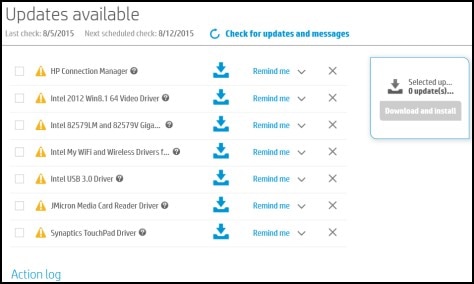
- To check for recent updates, click Check for updates and messages. If HP Support Assistant finds updates, they display in the Updates available window.
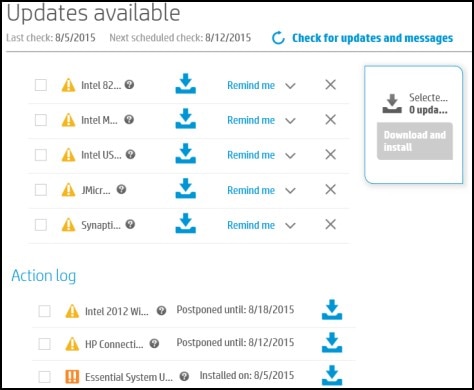
- To delete an update, click
 next to the update.
 - To install the update now, click the Install now icon (
 ) next to the update.
- To delete an update, click
Then try fixing the drivers issue by using the Windows troubleshooter. You can do it by following the below steps:
To open the Troubleshooting tool:- Move the mouse pointer to the lower left corner of the screen, right-click, and select Control Panel from the menu.

- Under System and Security click Find and fix problems.

- Click Hardware and Sound.

If it doesn't work, try updating the audio driver:- Move the mouse pointer to the lower left corner of the screen, right-click, select Device Manager from the menu.
- Double-click Sound, video and game controllers.
- Right-click the name of the audio device and select Properties.
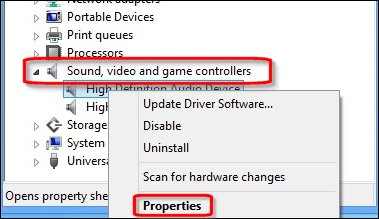
- Click the Driver tab. Click Roll Back Driver.

- Click Yes to roll back to the previous driver.
Regards,
Lokesh
There are no answers yet.
Welcome to Reviversoft Answers
ReviverSoft Answers is a place to ask any question you have about your computer and have it answered by the expert community.Post your question
Ask your question to the community nowSimilar questions
I kept getting the blue screen with Driver Power State Failure error message and then my computer would restart. I found your product and it did not happen any more. I just purchased an anti-virus (kaspersky) and now it is doing it again. It is so frustrating. My computer is only 6 months old. It is a Asus desktop.VIEW ANSWERS8I have had Driver Reviver since Jan 2013 and it just started giving me this error message today on October 6th, 2013.VIEW ANSWERS19Having trouble with your PC?Complete a free PC scan using Driver Reviver now.DownloadStart Free Scan -
