-
ReviverSoft
Answers
Get Answers from our
Community of Computer Experts-
Home
-
Resources
-
Questions & Answers
- how do I gvet my router name and password back?
how do I gvet my router name and password back?
 i like this question0 Like ItFollowToshiba 2 weeks agoOperating System:Answer this questionbest answer
 Hi Eddie,
If you’ve forgotten your router’s password, there’s a way to reset the password using the below methods:
1. Find Default Username and Password
Before resetting your router to its default settings, you should first try using the default username and password to log in.
There are several ways to find this information:- Read your router’s manual. Different models of routers even ones from the same manufacturer often have different username and password combinations. To locate the default username and password for the router, look in its manual.
- Look for a sticker on the router itself. Some routers ship with unique passwords.
- Try a common username and password combination. Many routers use the password “admin” (don’t type the quotes) and a blank username, a blank password and “admin” as the username, or “admin” as both the password and username.
2. Reset the Router to Factory Defaults
Routers come with a button you can press to reset the router to its default factory settings. This resets any configuration changes you’ve made to the router such as ports which are forwarded, network settings, parental controls, and passwords will all be removed.
First, look at the back (or perhaps the bottom) of the router. You’ll see a special button labeled Reset. This button is often located in a depressed hole, known as a “pinhole,” so you can’t accidentally press it.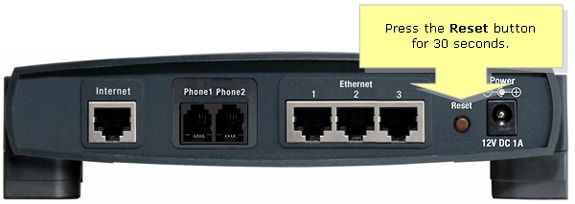
To reset the router, you’ll generally need to press this button and hold it down for about 10 seconds. After you release the button, the router will reset itself to the factory default settings and reboot.
I hope this helps you in getting back your password.
Regards,
Lokesh
There are no answers yet.
Welcome to Reviversoft Answers
ReviverSoft Answers is a place to ask any question you have about your computer and have it answered by the expert community.Post your question
Ask your question to the community nowSimilar questions
I kept getting the blue screen with Driver Power State Failure error message and then my computer would restart. I found your product and it did not happen any more. I just purchased an anti-virus (kaspersky) and now it is doing it again. It is so frustrating. My computer is only 6 months old. It is a Asus desktop.VIEW ANSWERS8I have had Driver Reviver since Jan 2013 and it just started giving me this error message today on October 6th, 2013.VIEW ANSWERS19Having trouble with your PC?Complete a free PC scan using Driver Reviver now.DownloadStart Free Scan -
