


Shall I use power buttons to switch it off. I AM afraid of losing data on my desktop
Operating System:
Windows 7
Answer this question
Best answer


Hi Arun,
Please follow the below fixes in order to resolve the issue.
1. Press and hold the power button for 10-15 seconds to shut down the computer.
2. Restart and check if the reset is still going on.
Fix 1. Unplug any peripherals connected to the computer
One user said that he fixed his computer stuck in restarting by unplugging all USB devices from the machine, and then booted again by cycling power. By which he successfully past the spinning circles on the black screen. Quite a number of people followed his advice and troubleshot the problem.Fix 2. End process of failed program in Task Manager
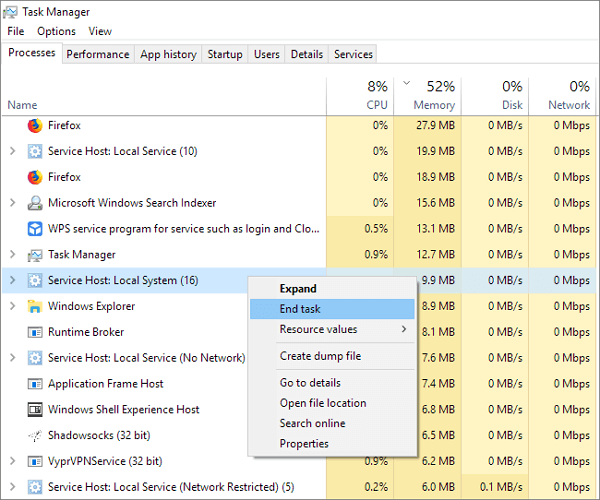
Another simple fix for Windows 10 getting stuck at restarting screen is upvoted by a lot of people, it says if your Windows 10 session gets stuck during a system restart, you can try these operations:- 1. Preess CTRL + ALT + DELETE.
- 2. Afterwards, the restart screen will disappear and be replaced by the Task Manager, where the 'hanging' programs that failed to close will be revealed.
- 3. End the processes of all running programs, then you'll recover from the 'Restarting' screen.
Fix 3. Run System Maintenance troubleshooter
1. Press Windows logo key on the keyboard, type Troubleshooting in the search bar and select the topmost search result.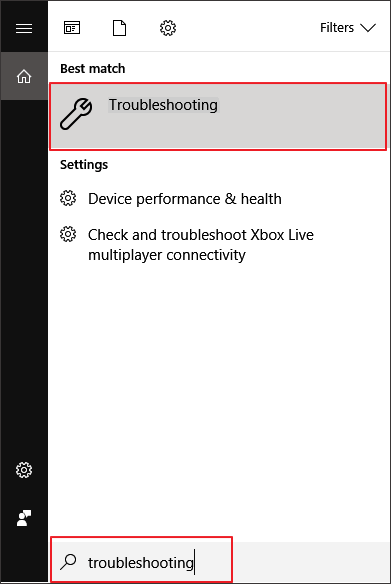
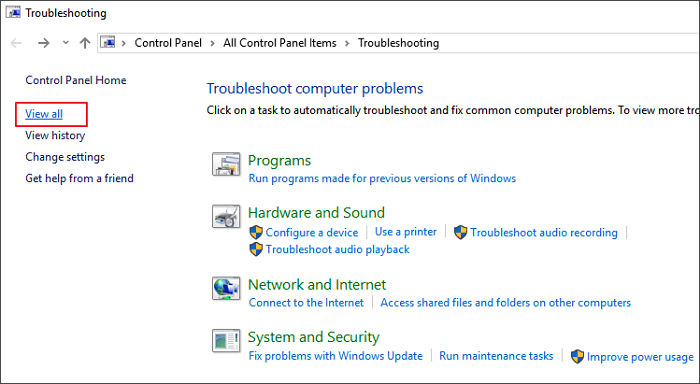
2. Select View all from the left side panel of the window.
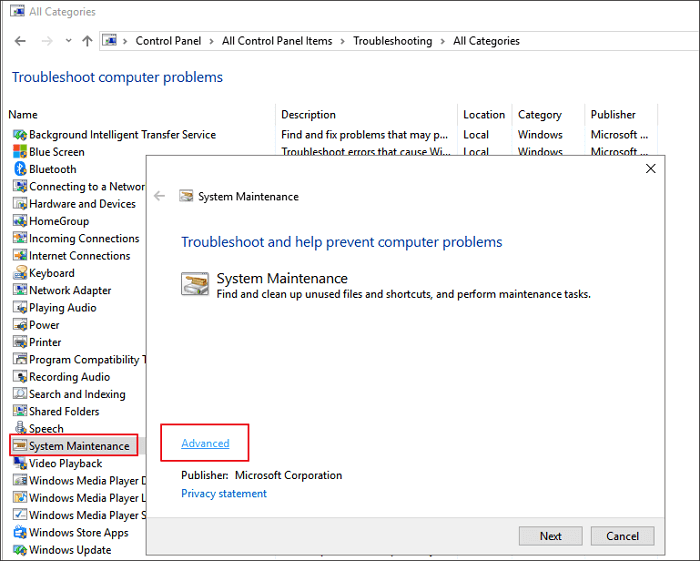
3. Select System Maintenance from the listed options, click on the Advanced option and check Apply repairs automatically option.
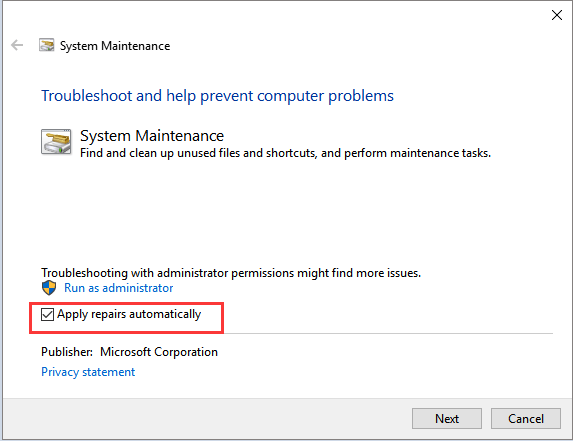
- 4. Follow the on-screen instructions and wait for the troubleshooting to complete.
- After the troubleshooting is completed, check the status for any missing system components on the computer.
- 5. Close the window and check if the changes are effective.
Fix 4. Restart the update service using command prompt
- On the lower left corner of the screen, right click and select Command Prompt (Admin).
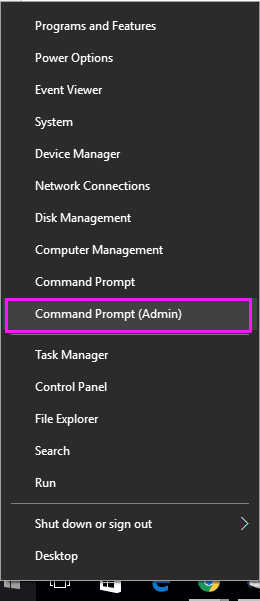
- Type "net stop wuauserv" (without quotes). Press enter. This will stop the update service from running in the background.
- Now type "cd %systemroot%" (without quotes). Press enter. This command will navigate the command prompt to the installation directory of Windows OS.
- Type "ren SoftwareDistribution SD.old" (without quotes). Press enter. By this command, the OS will rename the SoftwareDistribution folder to SD.old for a backup. In case anything goes wrong, you can just go to the C:WINDOWSSoftwareDistribution and change it to its original name.
- Lastly, type "net start wuauserv" (without quotes). Press enter. With this command, we will restart the update service in order to enable updates to the system.
Fix 5. Rollback to previous version of Windows
Hope the fixes above already fixed your problem, because this is the last chance you could stop Windows 10 computer getting stuck in 'Restarting' screen. To restore Windows 10 to the previous version, you'll have many options and you can try any one of them for help:Option 1: Rollback to the previous version of Windows 10 in 10 days/30 days
Option 2: Restore Windows 10 to the previous version with a previously crated system backup image.
So, before going to read further information, you need to make sure that you've created system backup image with some backup and recovery software, for example, EaseUS free backup software.
DownloadWin Version
Option 3: Transfer and restore Windows 10 system image to current PC with a stucking screen
To restore your Windows 10 and remove the stuck screen of restarting, you can also apply EaseUS Todo Backup to transfer and restore a healthy Windows system to your PC with below guidelines:
1. Install EaseUS Todo Backup on a new and healthy Windows 10 computer and use it to create a Windows 10 system image backupto an external hard drive.
2. Create a bootable disk with EaseUS Todo Backup:
- Prepare a USB drive or CD/DVD-Recorder, and a CD/DVD-R/W which can be written.
- Launch EaseUS Todo Backup, click Tools > Create Emergency Disk.
- Select "Create WinPE emergency disk".
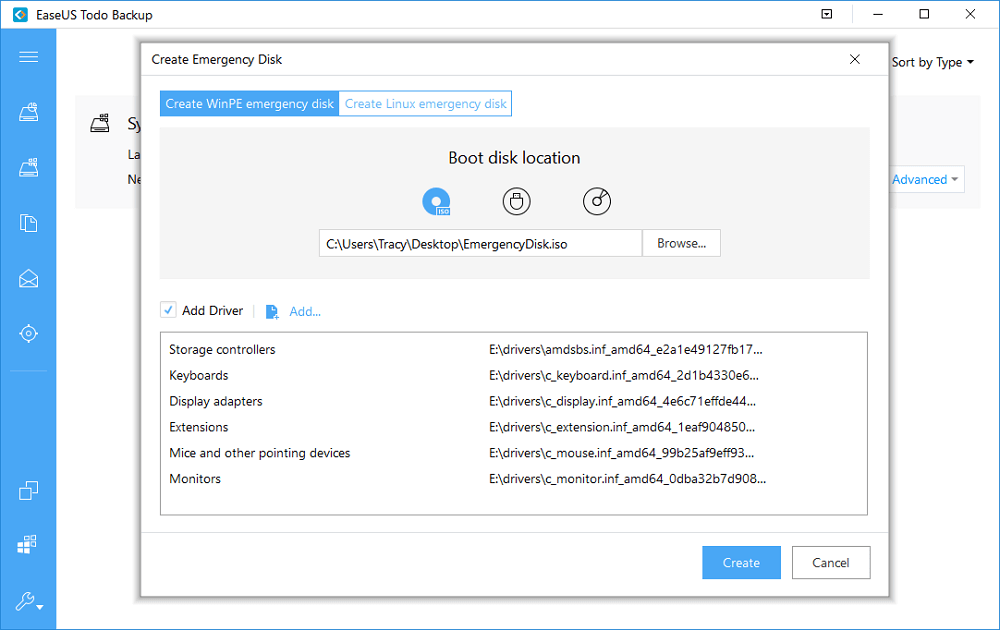
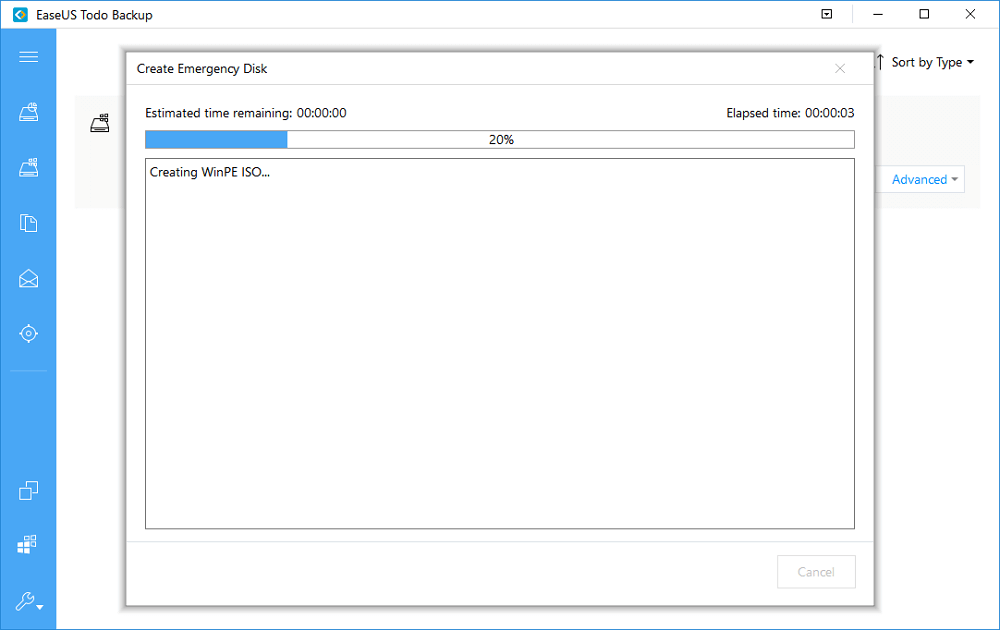
- Click Proceed to create a bootable disk.
4. Click on System Transfer and navigate to select the created Windows 10 system image on your external device.
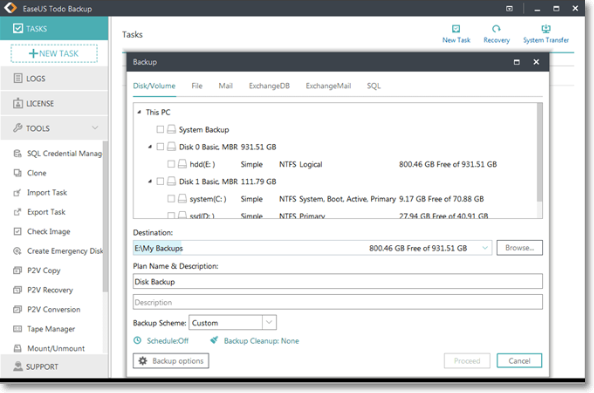
- 5. Choose a location - C drive by default to restore Windows 10 sytem image to your PC.
- Click Advanced Options > System Transfer box.
- Finally, click Proceed to complete.
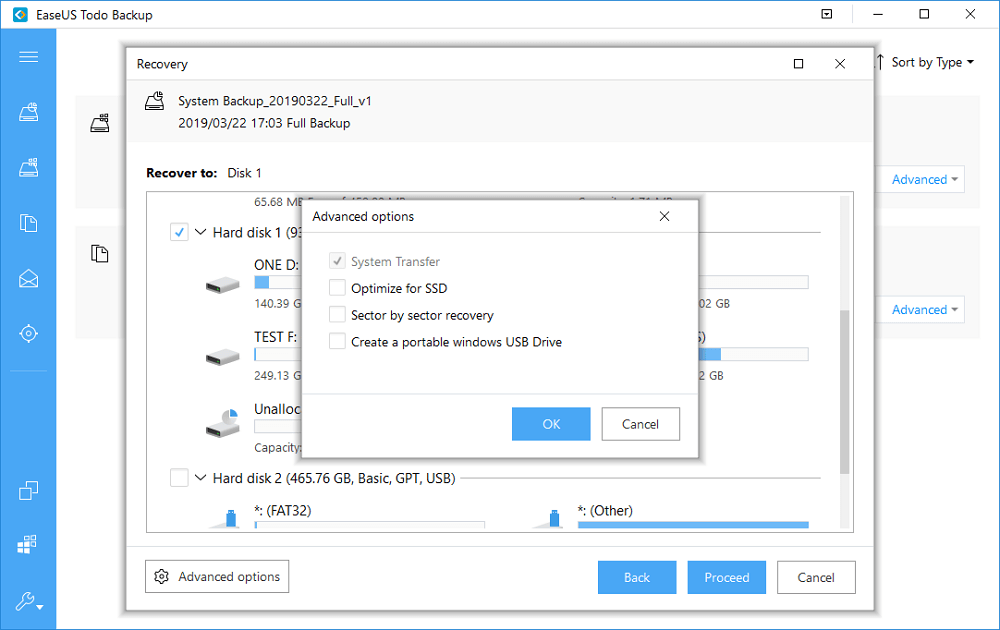
6. Last, when the process completes, you can restart your computer and set to boot the system from the original system disk.
I hope this helps.
Regards,
Lokesh
