-
ReviverSoft
Answers
Get Answers from our
Community of Computer Experts-
Home
-
Resources
-
Questions & Answers
- I have a disc in my lap top that won't open. It's from OCMH and is formatted different. How do I format it to open on my ASUS?
I have a disc in my lap top that won't open. It's from OCMH and is formatted different. How do I format it to open on my ASUS?
 i like this question0 Like ItFollowOnly with this disc, only when I try to view the disc. I have an ASUS laptopOperating System:Answer this questionbest answer
 Hi Scott,
Unlike previous versions of Windows, Windows 8 and 10 don’t include built-in support for playing DVDs.
Microsoft opted not to include DVD support because so many new computers especially tablets & ultrabooks aren’t coming with DVD drives.
So you can try the below fixes to make it work on your Windows 8 machine.
Fix 1: Sometimes having "exclusive mode" enabled "blocks" the audio CD so try disabling "exclusive mode":- Right-click the speaker icon in the Notification area of the Taskbar.
- Go to Playback devices > click on "Speakers".
- Under the Playback tab > Properties > Advanced.
- Then remove the checkmark in front of "Allow applications to take exclusive control of this device" > OK
Fix 2: Use fix it from Microsoft
Diagnose and repair CD or DVD drive issues, when you cannot burn or play CD or DVD discs, when a drive is not found, not accessible or not connected. If you purchased a new Windows 8 that comes with a DVD or Blu-ray drive, your computer’s manufacturer has likely included DVD-playing software with your computer.
Run now Fix 3: Install a Third-Party DVD Player
The easiest way to play DVDs in Windows 8 is by installing a third-party DVD player. I would recommend VLC media player.
It’s free, and after you install it you’ll be able to play DVDs in VLC.
To play a DVD in VLC, click the Media menu and select Open Disc.
Fix 4: Use a Licensed DVD Player
It will probably be configured to open automatically when you insert a video DVD. If it isn’t, you can try typing DVD or Blu-ray at the Start screen to search your installed applications and see if you have any applications with DVD in their name.
To examine all the software on your computer, use the All Apps screen. Press the Windows key to access the Start screen, right-click anywhere on the Start screen, and select All Apps. Scroll through the list of installed applications and look for a DVD-playing program.
Fix 4: Update or reinstall the driver
To update the driver, search for the driver on the device manufacturer's website, and then follow the installation instructions on the website.
To reinstall the driver, follow these steps:- Press the Windows logo key + R to open the Run dialog box.
- Type devmgmt.msc in the Run dialog box, then press Enter. If you are prompted for an administrator password or for a confirmation, type the password, or click Allow
- In Device Manager, expand DVD/CD-ROM drives, right-click the CD and DVD devices, and then click Uninstall.
- When you are prompted to confirm that you want to remove the device, click OK.
- Restart the computer.
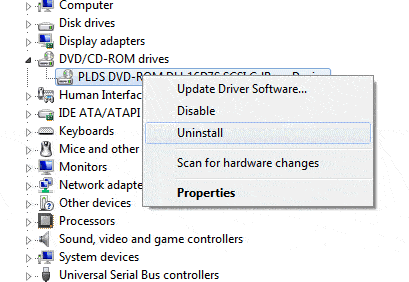
I hope this helps in solving the disc issue.
Regards,
Lokesh
There are no answers yet.
Welcome to Reviversoft Answers
ReviverSoft Answers is a place to ask any question you have about your computer and have it answered by the expert community.Post your question
Ask your question to the community nowSimilar questions
I kept getting the blue screen with Driver Power State Failure error message and then my computer would restart. I found your product and it did not happen any more. I just purchased an anti-virus (kaspersky) and now it is doing it again. It is so frustrating. My computer is only 6 months old. It is a Asus desktop.VIEW ANSWERS8I have had Driver Reviver since Jan 2013 and it just started giving me this error message today on October 6th, 2013.VIEW ANSWERS19Having trouble with your PC?Complete a free PC scan using Driver Reviver now.DownloadStart Free Scan -
