-
ReviverSoft
Answers
Get Answers from our
Community of Computer Experts-
Home
-
Resources
-
Questions & Answers
- There are horizontal blue lines on my laptop since 1 week immediately after I installed NVidia card.
There are horizontal blue lines on my laptop since 1 week immediately after I installed NVidia card.
 i like this question0 Like ItFollowThese are flickering blue line and by tilting screen the lines disappear. But I would want a permanent fix for this. Laptop configuration is Alienware having 8 gb RAM and Intel Core i7 processor.Operating System:Answer this question
0 votes
00Hi Jennifer,
The horizontal blue lines might come because of Display drivers out of date. You can try the below fixes to resolve this problem.
Fix 1:
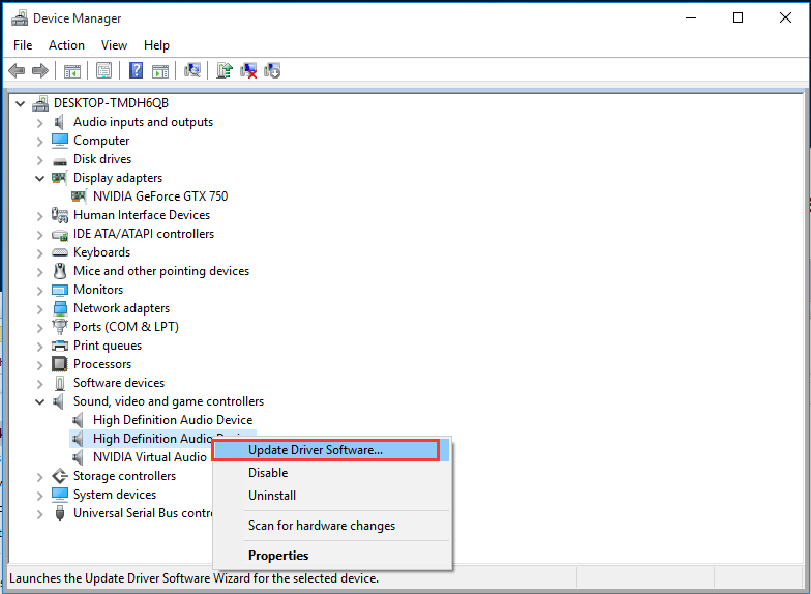
You may update the Display driver from Device Manager manually and check if this helps.- Press (Windows key + X) and click on “Device Manager”.
- Expand “Display Adapter”.
- Right click on the video driver and select “Update Driver Software”. Once this is done, restart the computer and check if the issue persists.
Fix 2:
If there no updated drivers available on the computer manufacturer’s website, then try installing it in compatibility mode. Compatibility mode runs the program using settings from a previous version of Windows. Follow these steps to install the drivers in compatibility mode and check if that helps.- Download the driver from the manufacturer’s website.
- Right-click on the driver setup file and click on ‘Properties’.
- Click on the ‘Compatibility’ tab and check the box ‘Run this program in compatibility mode for’and select Windows 8/8.1 operating system from the drop down menu and proceed with the installation. Once this is done, restart the computer and check if the issue persists.
If issue persist, I suggest you to try the following steps to run DISM scan to check and restore system file corruption:- Open command prompt by pressing Windows key + X and selecting “Command prompt admin”.
- In command prompt, type the following commands and press Enter after each command:
- DISM.exe /Online /Cleanup-image /Scanhealth
- DISM.exe /Online /Cleanup-image /Restorehealth

Close the command prompt and restart the PC and check if it works.
I hope this helps in getting back to normal screen.
Regards,
Lokesh
0 votes
00Hello Jennifer ,
Thank you for posting your concern's here.
I am sorry to hear about the problem you are experiencing.
Have you tried reinstalling the NVIDIA card of yours?
If not, please try to reinstall your NVIDIA card and see if it fixes the problem.
If you are installing a new NVIDIA video card, you need to install the specific drivers for that video card in order to work properly.
You can try updating a specific driver to your computer by navigating device manager.
1. Click start button and type "device manager" without quotation mark.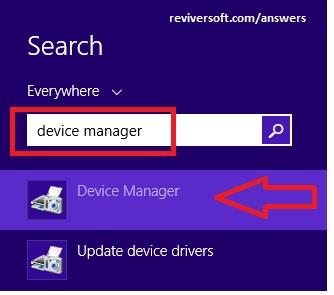
2. On Device manager interface, please select specific driver and click update driver software.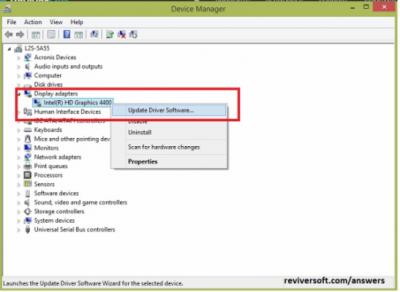
3. By clicking update driver software, you should see this image below, please choose the first option.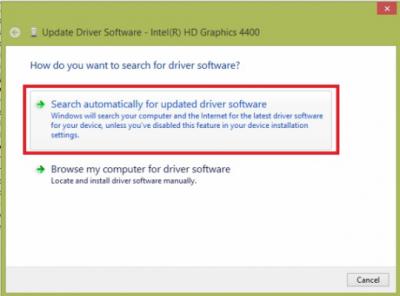
I hope this helps you with the problem you experiencing.
If you have any other questions, please let me know.
Sincerely,
Christian
Welcome to Reviversoft Answers
ReviverSoft Answers is a place to ask any question you have about your computer and have it answered by the expert community.Post your question
Ask your question to the community nowSimilar questions
Started happening about 3 weeks ago at the same time as I had the HD replaced.VIEW ANSWERS19mein pc ist put mochte nun reviversoft auf mein laptop registriren wie geht das und was muß ich tunVIEW ANSWERS19I kept getting the blue screen with Driver Power State Failure error message and then my computer would restart. I found your product and it did not happen any more. I just purchased an anti-virus (kaspersky) and now it is doing it again. It is so frustrating. My computer is only 6 months old. It is a Asus desktop.VIEW ANSWERS8Having trouble with your PC?Complete a free PC scan using Driver Reviver now.DownloadStart Free Scan -

