


I changed it many times but always comes back as 1jan2015 and disturbed all the settings.
Operating System:
Windows 7


Hi Aldert,
One of the things we take for granted is that clocks show the current time. When your system’s internal clock loses its time, it can interrupt scheduled tasks or lead to weird Windows errors. Moreover, a time that’s off by minutes or even hours can make you run late or miss appointments.
1. CMOS Battery
This is the most likely scenario, especially if your computer is a little older.
The CMOS battery sits on your computer’s motherboard and provides power to the Complementary Metal Oxide Semiconductor (CMOS) chip. This chip stores information about the system configuration, including the date and time. The CMOS battery makes sure the chip can store this data even while the computer is turned off and not hooked up to power. If the battery goes bad, the chip starts losing information and one of the symptoms is that your computer no longer maintains its time and date.
Replacing the CMOS battery is pretty easy. You just have to turn off your computer, ground yourself, open the case, find out which type of battery (step 3 in the linked guide) sits on your motherboard, go buy it, start over, and exchange the battery. Follow the links to the keywords for articles on the respective steps.
2. Time Zone
This is an easily fixed cause for when your computer clock loses time.
Your computer may simply be set to the wrong time zone and every time you fix the time, it resets itself to that time zone when you reboot. If the minutes are correct and only the hour is bad, that’s probably the issue you’re dealing with.
To fix your time zone in Windows 10, right-click the system clock in your Taskbar and select Adjust date/time. Under the Time Zone header, check whether the information is correct. If not, select the correct time zone from the drop-down menu.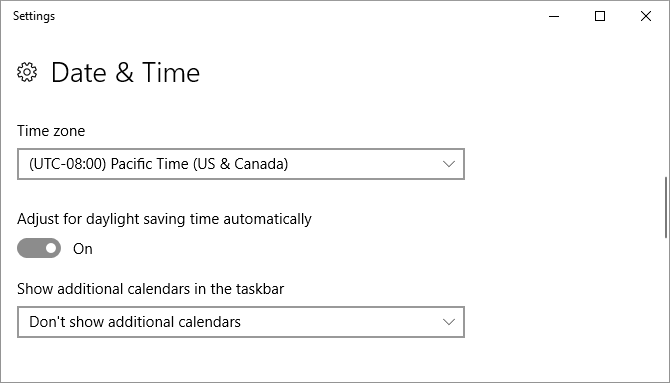
If you want to go further and change the time server, scroll further down in the above window and click Additional date, time, & region settings. At present, this will take you to the old Control Panel.
Under Date and Time, click Set the time and date, which opens another window. Switch to the Internet Time tab, click Change Settings, and now you can add an Internet time server of your choice, which your system will use to synchronize the time.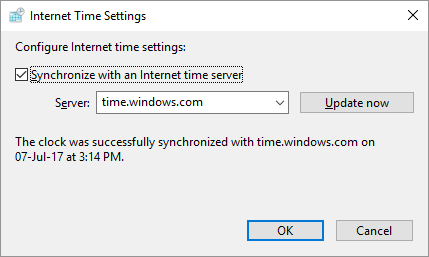
3. Malware
This is the least pleasant scenario because malware is notoriously difficult to remove.
Maybe a virus hijacked your computer and messes with its time. To fix it, you need to gather a few malware removal tools. First, make sure your anti-virus program is up to date with the latest virus definitions.
I hope this helps.
Regards,
Lokesh
